
Access your home server over SSH from anywhere
Even when your internet provider blocks remote access.
If SSH suddenly stopped working, even though nothing changed, this is likely why.
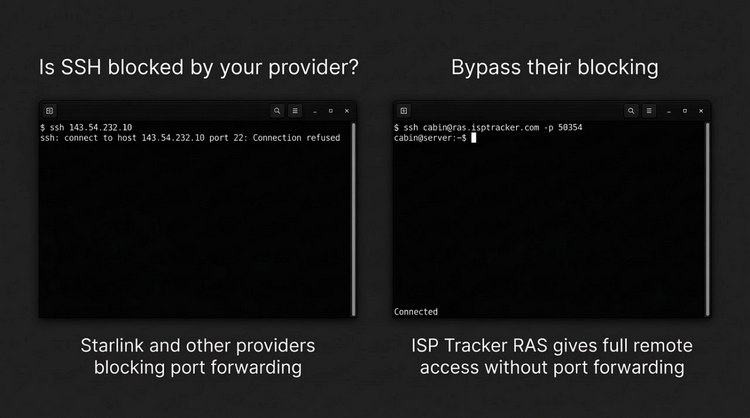
If you’ve tried to SSH into your home network on Starlink or similar providers, you’ve probably seen:
- Connection timeouts
- Ports that won’t open
- Everything configured correctly, but nothing connects
You check your settings. You verify your SSH server is running. You double-check port forwarding.
Everything looks right.
But it still doesn’t work.
This is extremely common.
The problem is not your SSH setup, it’s that your provider is blocking access.
Why SSH Stops Working
SSH normally relies on being able to reach your network from the outside.
But many providers, including Starlink, prevent that completely.
That means your connection attempts never even reach your network.
No errors. No logs. Just timeouts.
If you want to understand the technical reason behind this, it’s often due to how providers use shared addressing (CGNAT), which prevents incoming connections entirely. You can read more about CGNAT here.
Providers like Starlink also note that certain types of connections require special handling due to how their network is designed. See Starlink’s official note on VPN and connectivity.
This is why port forwarding appears to “not work.”
The Simple Fix
ISPTracker RAS restores remote access to your network so you can connect again, without changing your router or dealing with port forwarding.
Instead of fighting your network configuration, it simply makes access work again.
Once it’s set up, you connect the same way you always have.
Connecting With SSH Using RAS
After creating a profile for SSH, you’ll receive a server address and port.
You can use that directly in your SSH client.
Using Remmina
- Server: ras.isptracker.com:50365 (port is assigned by RAS)
- Username: your username
- Password or key: your normal SSH credentials
Click connect and you’re in.
Using the Command Line
ssh myhouse@ras.isptracker.com -p 50365
No extra steps. No special configuration.
Real Access, Not a Workaround
This isn’t limited to web interfaces or dashboards.
You get full SSH access to your systems, including:
- Router and firewalls
- Servers
- Raspberry Pi devices
- Linux machines
- Network equipment
It works the way SSH is supposed to work.
No Router Changes Required
You don’t need:
- Port forwarding
- A public IP address
- Dynamic DNS
Dynamic DNS can help when your public IP changes, but it does not solve the problem when incoming connections are blocked. Learn more about Dynamic DNS.
You don’t need to troubleshoot router settings or deal with ISP limitations.
Get Back To What Worked Before
If SSH stopped working after switching providers, the issue isn’t your configuration.
You didn’t break anything.
Your connection is simply being handled differently.
ISPTracker RAS restores access so you can connect to your systems again, simply and reliably.
Use SSH from anywhere, just like you used to.