
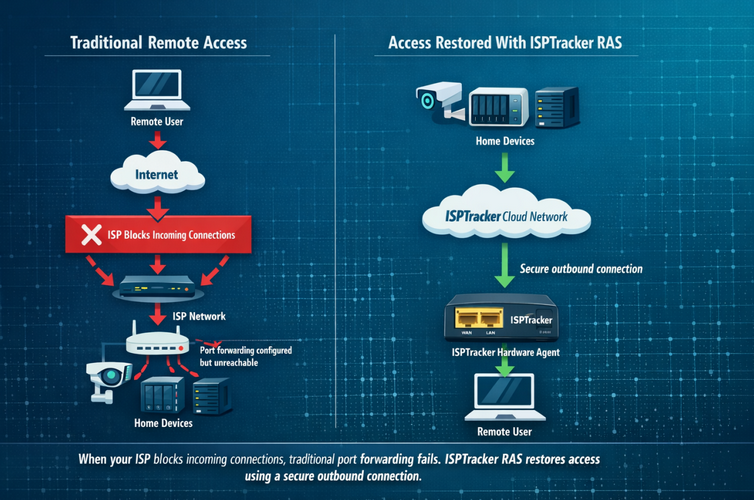
Locked Out Of Your Own Home Network?
Bypass their blocking. Here’s The Fix
Access your cameras, NAS, servers, and other devices from anywhere, even when your internet provider blocks normal remote access.
This works for everything from cameras and web dashboards to full access like SSH.
For years, remote access was simple. You set up port forwarding in your router and connected to your devices from anywhere.
Today, that often no longer works.
If you’ve tried to access your:
- Security cameras
- NAS or file storage
- Remote desktop
- Home server
- Home automation dashboard
- Monitoring tools
…and found that remote access suddenly stopped working, you’re not the only one.
This is extremely common with Starlink and similar providers.
Why This Happens
Most people first assume something is wrong with their router, firewall, or port forwarding settings.
Usually, that is not the problem.
With Starlink and many newer internet providers, incoming connections from the internet are blocked. That means your home network cannot be reached directly from outside, even when your router is configured correctly.
That is why people end up searching for things like:
- Starlink port forwarding not working
- Can’t open ports on Starlink
- How to access cameras remotely on Starlink
- Why can’t I reach my home network from outside
If you want to understand the technical side, Starlink notes that VPNs need NAT traversal support to work well through CGNAT, and CGNAT itself is what often breaks traditional inbound access and port forwarding. You can read more here:
If incoming connections are blocked, port forwarding will never work.
The Simple Fix: ISPTracker RAS
ISPTracker RAS works around the problem by allowing secure access to your network without relying on incoming connections.
The ISPTracker Hardware Agent runs inside your network and maintains access in a way that continues to work even when your provider blocks inbound connections or your IP address changes.
Access is controlled by you only and secured based on your settings. No one else can connect unless you allow it.
That means no digging through confusing router settings and no fighting with workarounds that only work sometimes. The RAS connection remains available until you change or remove it.
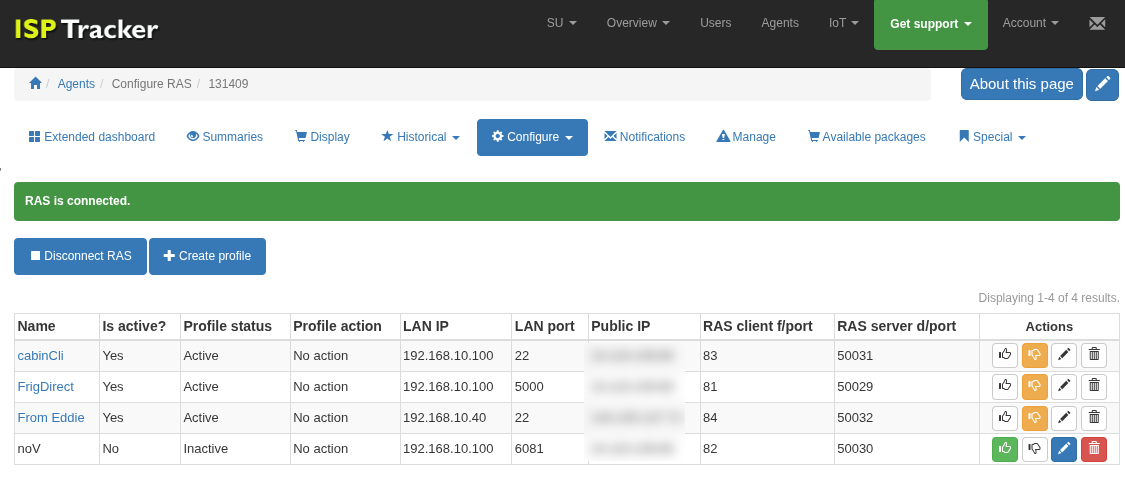
Just create profiles for the devices or services you want to reach. A few clicks later, those profiles go live and you can open your home router, firewall, web server, security camera, or other tools remotely.
This is what it looks like to set up remote access:
You do not need:
- Port forwarding
- A public IP address
- Dynamic DNS
- A complicated VPN setup
If you are curious, Dynamic DNS can help when your public IP changes, but it does not solve the problem when your provider blocks incoming connections in the first place. More on that here:
If your internet works, this works.
Reach Your Stuff From Anywhere
Once it’s set up, you can get back into your network the way you expected to in the first place.
That can include:
- Your security cameras and NVR
- Your NAS and files
- Your desktop or servers
- Your home automation system
- Your internal dashboards and tools
This includes full access methods like SSH, not just browser-based tools.
No hacks. No constant troubleshooting. Just remote access that works.
Secure By Design
You stay in control of what is reachable.
You choose exactly which devices or services can be accessed remotely.
You can also restrict access to specific outside IP addresses when needed.
Your entire network is not exposed.
No Router Changes. No Headaches.
Traditional remote access often means digging through router menus, opening ports, setting up DNS, and troubleshooting one issue after another.
ISPTracker RAS removes that complexity. The hardware agent handles everything automatically in the background.
More Than Just Remote Access
The same hardware agent also monitors your internet connection.
It tracks things like:
- Outages
- Disconnections
- Latency
- Automated speed testing
- LAN and provider reliability
- Detailed outage history (when, how long, and where)
- Automatic proof of internet issues without manual testing
So you are not just getting access back, you are also getting a clear picture of how your internet service is actually performing.
One Device. Two Problems Solved.
- Get remote access working again
- Understand your internet reliability
Simple setup. Secure access. No more guessing. Help is always available in our support forums.